QR Code Event Wall Setup: A Complete Step-by-Step Guide
A QR code event wall lets your guests share photos, messages, and reactions live on a projected screen by scanning a single QR code — no app downloads, no social media accounts. This guide walks you through setup from scratch in under 5 minutes.
Last updated: September 2026
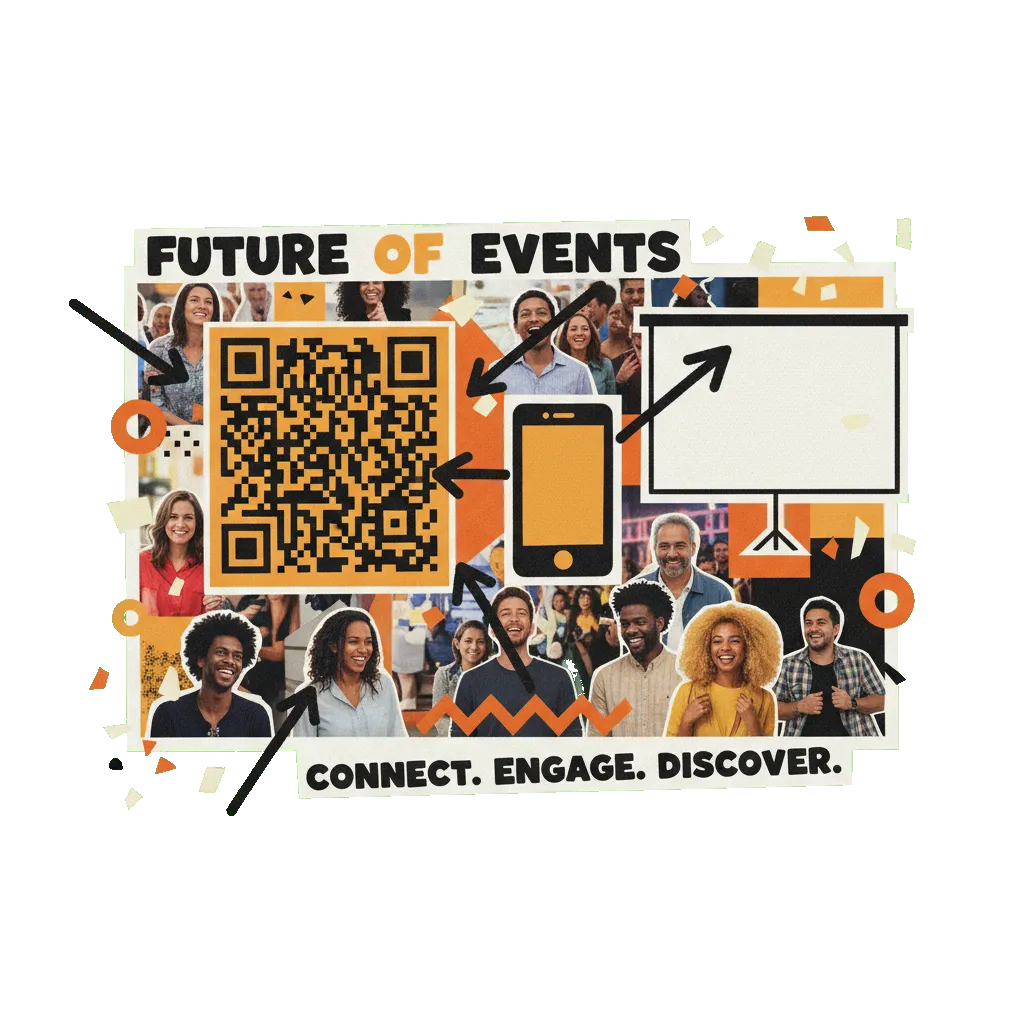
A QR code event wall is a live display that shows guest-submitted photos, messages, and reactions in real time. Attendees scan a QR code with their phone camera, which opens a web-based submission form — anything they post appears on a projector or TV within seconds. The wall requires only a single QR code, a display device, and an internet connection.
Why a QR code event wall outperforms traditional event interaction
Event organizers have been trying to capture guest participation for decades. Printed comment cards get lost. Hashtag walls require guests to post publicly on social media, which 60-70% of wedding and corporate attendees refuse to do. Apps have to be downloaded, logged into, and abandoned.
A QR code event wall removes all of that friction. The guest journey is three actions: point phone camera at QR code → tap the link → upload or type. Average time from arrival to first submission is under 15 seconds. Participation rates in real events range from 60% to 80% of attendees, compared to 10-20% for hashtag walls and under 5% for app-based tools.
The display side is equally simple. Any device with a browser — laptop, iPad, smart TV, projector-connected computer — loads the display URL and shows submissions live as they arrive. WebSocket delivery keeps latency under 1 second, so a photo shared by a guest at the back of the room appears on the screen in near-real-time.
For organizers, the data matters: events using a QR wall typically generate 3–5x more user-generated content than events without one, and the content is easier to archive (it's all in one place) and re-use for post-event social media, recap videos, or client deliverables.
How to set up a QR code event wall
Follow these steps to go from nothing to a live, working wall ready for your event. Total time: around 5 minutes.
-
1
Pick a QR code event wall platform
Choose a platform that generates the QR code and display automatically, rather than one that requires you to stitch together a form builder + a display tool. Look for: instant QR code generation, real-time display, no app requirement, and a free tier so you can test before committing. QR Wall, Walls.io, and Kululu all fit this category — see the comparison guide linked below for specifics.
-
2
Create the event and set a title
Sign up and create your first event. The title is what guests see on their submission page (e.g. 'Sarah & Mike's Wedding' or 'Q2 All-Hands'), so make it clear. Most platforms generate a unique QR code and a display URL for the event in under 60 seconds.
-
3
Configure display mode and theme
Pick how submissions appear on the screen: slideshow (one full-screen submission at a time, rotating every few seconds) or feed (a scrolling grid of recent submissions). Slideshow is best for projectors at weddings and ceremonies; feed is better for lounge TVs and trade show booths where people walk by. Most platforms offer 2-4 theme presets — pick one that matches your event aesthetic.
-
4
Enable content moderation
For any event where guests you don't know personally will be submitting (corporate events, conferences, public parties), enable AI content moderation if available. This automatically hides submissions flagged for violence, harassment, explicit content, or hate speech — without you having to manually pre-approve each one. On QR Wall, professional tier moderation uses OpenAI's omni-moderation-latest and catches 99%+ of inappropriate content within 1-2 seconds.
-
5
Print or project the QR code
Download the QR code as a high-resolution PNG. Put it somewhere guests will see and have time to scan: printed on table tents at each seat, on signs at entrances, in the event program, or projected as a persistent corner of the main display. The QR should be at least 5cm (2 inches) at viewing distance, and high-contrast (dark on light background).
-
6
Open the display URL on your projector or screen
On the device connected to your projector or display TV, open the event's display URL in a modern browser (Chrome, Safari, Firefox all work). Put the browser in full-screen mode (F11 on Windows/Linux, Ctrl+Cmd+F on Mac). The wall should show an 'empty state' until the first guest submits.
-
7
Test with one submission before the event starts
Scan the QR code with your own phone and submit a test photo. Confirm it appears on the display within 2-3 seconds. If moderation is enabled, the submission should appear approved if the content is safe. If anything fails at this stage, troubleshoot the internet connection first (most issues are bandwidth, not the platform).
-
8
Enable wake lock for long events (critical for projectors)
Display devices will dim and eventually sleep without activity. Modern browsers support the Wake Lock API, which keeps the screen on. QR Wall auto-enables this on the display URL. If your chosen platform doesn't, disable screen sleep in your device's display settings before the event (Mac: System Settings > Battery > Prevent sleep when display is off; Windows: Settings > System > Power).
Common pitfalls (and how to avoid them)
- ✗QR code too small. If guests at the back of the room can't scan it, participation drops by half. Rule of thumb: QR should be 5-8cm at 1 meter viewing distance, scaled up for further distances.
- ✗Venue Wi-Fi with no guest network. Guests on 4G/5G are fine, but if your venue has weak cellular coverage, you need a guest Wi-Fi network. Test by scanning a submission yourself from a phone in airplane mode (then off airplane, on guest Wi-Fi only).
- ✗No moderation on public events. The first inappropriate submission in front of 200 guests is unrecoverable. Always enable moderation for events that are not invite-only friends and family.
- ✗Slideshow timing too fast or too slow. 5 seconds per submission feels right for most weddings; 8-10 seconds for corporate events where people want to read messages.
- ✗No fallback if the display device fails. Have a second device ready (another laptop, a phone as a backup display) that can load the display URL if the primary fails mid-event.
QR event wall platforms compared
A side-by-side of the major platforms, as of April 2026, for the specific use case of a QR code event wall.
Frequently asked questions
How much does a QR code event wall cost?
Most platforms offer a free tier with limited submissions (e.g., QR Wall shows 5 submissions on the display for free) and paid tiers between $10.99 and $99/month for unlimited submissions, moderation, and branding removal. For a single event, expect to pay $0-15 on the cheap end and $25-100 for premium options like enterprise platforms. The QR code itself is always free to generate — you only pay for hosting the display and storing the content.
Do guests need to download an app?
No. Modern QR code event walls open a web page when scanned. Guests' phone cameras automatically recognize QR codes on iOS (since iOS 11) and Android (since Android 8), and tapping the notification opens the submission page in their default browser. Over 95% of phones sold since 2018 have native QR scanning built in. If a platform requires app downloads, it's the wrong tool for a public event.
What happens if the Wi-Fi goes down during the event?
Guests on 4G/5G can still submit — their phones don't need your Wi-Fi to reach the internet. The display device needs a connection, though. Either have a cellular hotspot as backup, or wire the display device via ethernet (venue events: request this in advance). If the display goes offline, submissions are still accepted and will appear when connectivity returns.
How do I moderate content in real time?
Two approaches. Automated: enable AI moderation on platforms that support it (QR Wall professional tier, for example), which automatically blocks violence, harassment, explicit content, and hate speech within 1-2 seconds. Manual: assign one team member to watch the display URL on their laptop with a 'delete' button — works for small events but doesn't scale past a few hundred submissions.
Can I archive all submissions after the event?
Yes on most paid platforms. Look for a 'download archive' or 'export' feature that packages all submissions (photos + messages + metadata) into a ZIP file. This typically lands in your email inbox 10-30 minutes after you trigger it. Free tiers often exclude this feature, so verify before the event that you can get your content out.
Ready to set up your QR code event wall?
Create a free QR Wall in under 60 seconds. No credit card, no app, no setup fees.
Create your free QR Wall →✓ No credit card required ✓ Setup in 60 seconds
Related resources
How QR Wall works
3-step setup overview with screenshots
Free event photo wall tools compared
Honest comparison of free options, including QR Wall
Audience photos at conferences
Run-of-show for large-scale events
QR Wall for weddings
Specific setup tips for ceremonies and receptions
How to get guests to scan the QR
Placement, card wording and the MC script that raise participation