How to Display Photos on a TV or Projector at Your Event — With or Without a Laptop
There are three reliable ways to get photos onto a venue screen: the smart TV's own browser (no laptop needed), a laptop over HDMI, or a casting device like Chromecast. This guide covers the exact setup for each, which one to pick for your venue, and the pitfalls that break screens mid-event.
Last updated: September 2026
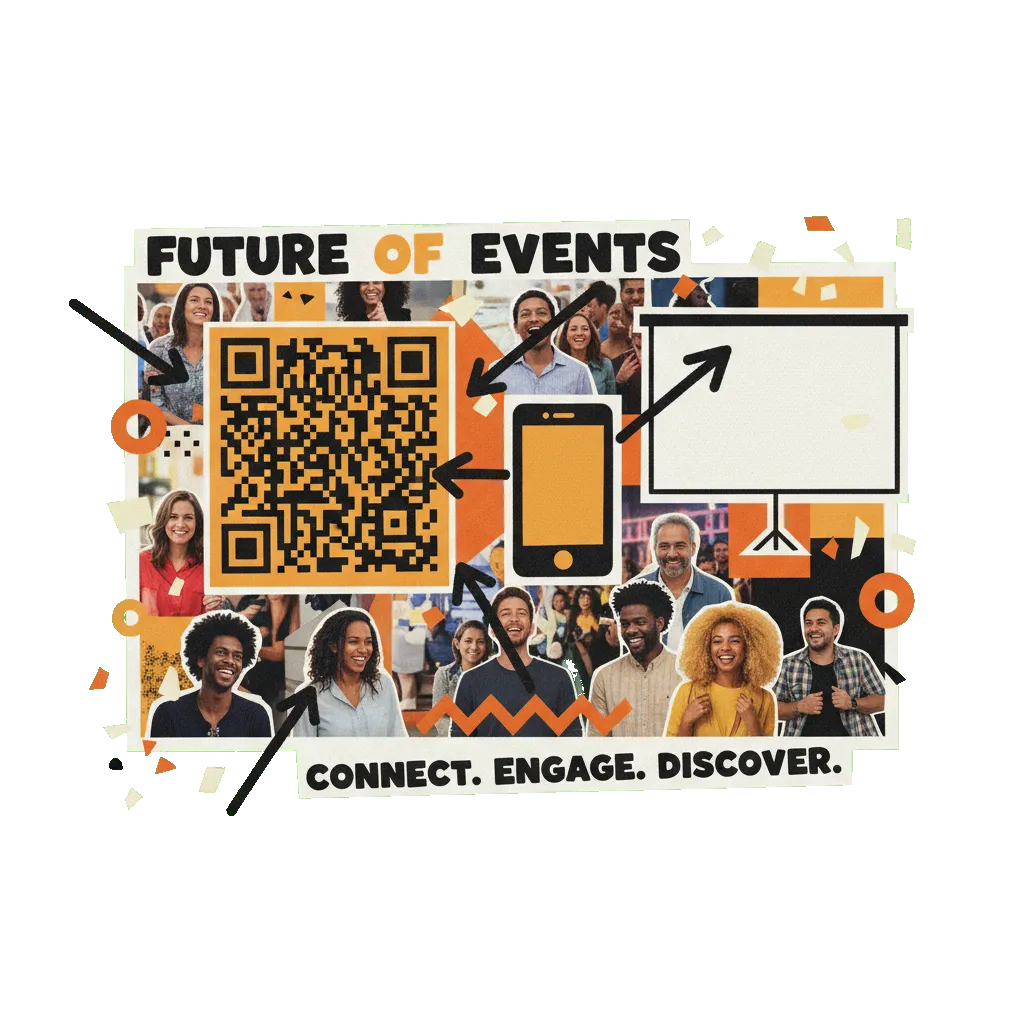
The best way to display photos on a TV at an event depends on one question: is the screen a smart TV with a web browser? If yes, you need no other hardware — open a live photo wall like QR Wall directly in the TV's browser (on QR Wall, type qrwall.live/tv and pair it from your phone; nothing else is typed on the TV). If not, a laptop over HDMI or a Chromecast/Apple TV fills the gap. A live wall — where guests add photos by scanning a QR code during the event — beats a pre-built slideshow because the screen fills itself while the event happens.
Static slideshow vs. live photo wall: pick the right kind of display first
Most "photos on a TV" advice assumes a static slideshow: you collect pictures beforehand, load them on a USB stick or a Google Photos album, and loop them. That works for a memorial table or an anniversary montage — content that exists before the event starts.
For a wedding reception, a birthday, a conference, or any event where the photos are being taken in the room, a static slideshow is the wrong tool: it can't show what's happening now, and every update means someone fiddling with a USB stick mid-party. A live photo wall flips the model — a QR code on the screen lets guests submit photos from their phones, and each one appears on the display within a second or two. The screen starts nearly empty and fills up as the event unfolds; typical participation runs 60-80% of the room versus under 20% for hashtag-based approaches.
Everything below assumes you want the live version — but the display hardware logic (smart TV vs. laptop vs. casting stick) is identical if you only need a static loop. The setups are ordered by how little equipment they need.
The three setups, step by step
Work down this list and stop at the first setup your venue supports. Total setup time is 2-10 minutes for any of them.
-
1
First, identify what screen the venue actually has
Call or visit and ask three questions: Is the TV a smart TV (does it have apps and a web browser)? Is there an HDMI port you can reach? Is there guest Wi-Fi, and does it need a login page (captive portal)? Most TVs sold since 2018 are smart TVs — Samsung (Tizen), LG (webOS), Sony/TCL/Hisense (Google TV), Vizio — and every one of those ships with a usable web browser. Projectors are usually dumb displays: plan on the laptop or casting route for them.
-
2
Setup A — smart TV alone, no laptop (the zero-hardware option)
Open the TV's web browser (on Samsung it's 'Internet', on LG 'Web Browser', on Google TV install/open Chrome or the built-in browser) and type qrwall.live/tv. A pairing code and QR appear on the TV. Scan it with your phone, sign in on the phone, pick your event, and the TV switches itself to the live wall — you never type a password or URL beyond those 13 characters on the TV, and no account is ever signed in on the venue screen. Your phone stays in control for moderation and settings. This is the best option for venue TVs, bars, lobbies, and any situation where dragging a laptop to the screen is awkward.
-
3
Setup B — laptop + HDMI (the universal fallback)
Any screen with an HDMI port accepts a laptop. Connect, set the laptop to mirror or extend, open the wall's display URL in Chrome or Safari, and press the fullscreen control (F11 on Windows, Ctrl+Cmd+F on Mac). Then disable sleep: on a Mac, System Settings → Displays → Advanced → prevent sleeping when the display is off; on Windows, Settings → Power → screen off 'Never' while plugged in. This is the right choice for projectors, older TVs, and venues with an AV desk that expects an HDMI feed.
-
4
Setup C — Chromecast, Apple TV, or Fire TV Stick (the $30 middle path)
A casting stick turns any HDMI screen into a smart display. Cast a Chrome tab from a laptop (Chrome → three-dot menu → Cast → select the device and 'Cast tab'), or AirPlay a Safari window to an Apple TV. One caveat: tab-casting keeps the source device involved — if the laptop sleeps or leaves Wi-Fi, the cast dies. Fire TV Sticks also ship with the Silk browser, which can open the pairing page directly like Setup A. Best for screens you control regularly (an office, a recurring venue) rather than one-night events.
-
5
Projector specifics: brightness and placement decide everything
Projectors punish ambient light. For a lit reception room you want 3,000+ ANSI lumens; below that, dim the lights near the screen or the photos wash out. Pick a display theme with a dark background (photos pop, and dark pixels hide projector noise), place the screen where guests naturally look — behind the head table, beside the dance floor, next to the bar line — and check the aspect ratio: older 4:3 projectors letterbox a 16:9 wall, which is fine, but disable any 'overscan' or zoom mode that crops the QR code off the edge.
-
6
Make the QR code on screen scannable from a distance
The QR code in the corner of the wall is how guests join, so its physical size on the final screen is what matters. Rule of thumb: scanning distance is about 10× the QR's width — a 20 cm code on a 65\" TV scans comfortably from 2 meters. If the room is deep, put printed table tents with the same code on tables (any live wall platform lets you download and print it) so the far half of the room joins without walking to the screen.
-
7
Kill every sleep timer before doors open
The number one mid-event failure is not the software — it's the screen going dark. Smart TVs: disable the sleep timer AND the 'eco' auto-off (Samsung: Settings → General → Power and Energy Saving; LG: Settings → General → Timers). Laptops: disable display sleep while plugged in. Projectors: check for an auto-standby timer in the setup menu. QR Wall's display page requests a browser wake lock, which keeps the screen alive on laptops and most Android-based TVs — but the TV's own eco timer can still override it, so belt and braces.
-
8
Test with one photo from the back of the room
Ten minutes before doors: scan the on-screen QR from the farthest guest position, submit a test photo, and confirm it lands on the display within a couple of seconds. This one test exercises the guest Wi-Fi/cellular path, the QR's scan distance, the display's connection, and moderation settings all at once. If the scan fails at distance, print backup codes for tables; if the upload crawls, the venue Wi-Fi has a captive portal or throttle — guests on mobile data will still be fine, but check the display device is on a stable connection.
Venue pitfalls that break screens mid-event
- ✗Hotel 'hospitality mode' TVs. Hotel and conference-center TVs often run locked firmware with the browser and settings menu disabled. Ask the venue in advance; if the TV is locked, go straight to Setup B or C — arguing with hospitality firmware on event day is a lost cause.
- ✗Captive-portal Wi-Fi. Venue networks that open a login page before granting access will silently break smart TVs and casting sticks, which can't complete the login. Fix: ask the venue for the 'device network' (many have one for exactly this), use a phone hotspot for the display device, or use a laptop where the portal page can be clicked through.
- ✗The TV's eco timer outlives your wake lock. Browser wake locks stop screensavers, but a TV's hardware auto-off ('no signal detected', '4-hour timer') fires regardless. Disable it in the TV's own settings — see step 7.
- ✗HDMI-CEC turning everything off. With laptop setups, closing the laptop lid or the laptop sleeping can send a CEC 'standby' signal that switches the TV off too. Keep the lid open and sleep disabled.
- ✗Casting from a phone that leaves the room. A tab cast or AirPlay session dies when the source device sleeps or drops off Wi-Fi. If the display source is somebody's phone, that phone is now venue equipment — better to use the smart TV's own browser (Setup A) so no personal device is load-bearing.
- ✗Vertical photos on a horizontal screen. Guests shoot portrait; screens are landscape. Check how your platform handles it before the event — QR Wall letterboxes portrait shots against a blurred fill rather than cropping heads off.
Smart TV vs. laptop vs. casting stick vs. USB slideshow
The four ways to get photos on a venue screen, compared for a live event. Prices are what you'd spend beyond hardware you already own.
Frequently asked questions
How do I display photos on a TV without a laptop?
Use the smart TV's own web browser. On QR Wall: open qrwall.live/tv in the TV browser, and a pairing code appears — scan it with your phone, sign in on the phone, choose your event, and the TV switches to the live photo wall by itself. Nothing else is typed on the TV and no account is signed in on the venue screen. This works on Samsung (Tizen), LG (webOS), Google TV, and Fire TV's Silk browser.
How do guests' photos get onto the screen during the event?
Through a QR code shown on the wall itself (and optionally printed on tables). Guests scan it with their phone camera, a submission page opens in their browser — no app, no account — and anything they post appears on the display in about a second. The screen effectively runs itself once it's up.
What if the venue TV is locked or has no browser?
Fall back to a laptop over HDMI (works on every screen with an HDMI port) or a $30 casting stick. Hotel and conference-center TVs often run locked 'hospitality' firmware — ask the venue in advance rather than discovering it on event day, and ask whether their AV desk prefers an HDMI feed anyway.
How bright does a projector need to be for a photo wall?
In a lit event room, 3,000+ ANSI lumens; in a dimmed room, 2,000 is workable. Below that, photos wash out. Two free wins regardless of hardware: choose a dark display theme so photos carry the contrast, and keep direct light off the projection surface.
Does the TV need to stay connected to the internet the whole time?
Yes — the display updates live over the network (QR Wall uses WebSockets with sub-second delivery, and reconnects automatically if the venue network blips). Guests, meanwhile, can submit over their own mobile data, so shaky guest Wi-Fi doesn't stop participation; only the one display device needs a stable connection. A phone hotspot is a fine backup for it.
Can I run the same wall on two screens at once?
Yes. The display is just a URL, so open it on both — a projector by the dance floor and a TV at the bar, for example. On QR Wall you can pair multiple TVs to the same event via qrwall.live/tv, and every screen updates simultaneously as guests post.
Put a live photo wall on that screen
Free to start. Works on smart TVs with no laptop — open qrwall.live/tv on the TV and pair from your phone.
Create your free QR Wall →✓ No credit card required ✓ Setup in 60 seconds
Related resources
QR code event wall setup
The full wall setup guide — this page's display step, expanded
How QR Wall works
3-step overview: create, display, watch it fill
What an event photo wall costs
Real 2026 price breakdown from $0 to rented AV
QR Wall for weddings
Reception-specific display and participation tips
Live wedding slideshow
Which view to run when: Grid, Slideshow, TV