Live Wedding Slideshow: A Run-of-Show for Your Guest Photo Wall
A live wedding slideshow is a screen at the reception that plays your guests' photos as they take them: guests scan the QR code shown on the screen, post from their phone's browser, and the photo is on the screen in about a second — no app, no account. This guide maps the night to QR Wall's three views — Grid for cocktail hour, Slideshow for dinner and speeches, TV for dancing — and covers setup, the screen, who runs it, and what you keep afterwards.
Last updated: September 2026
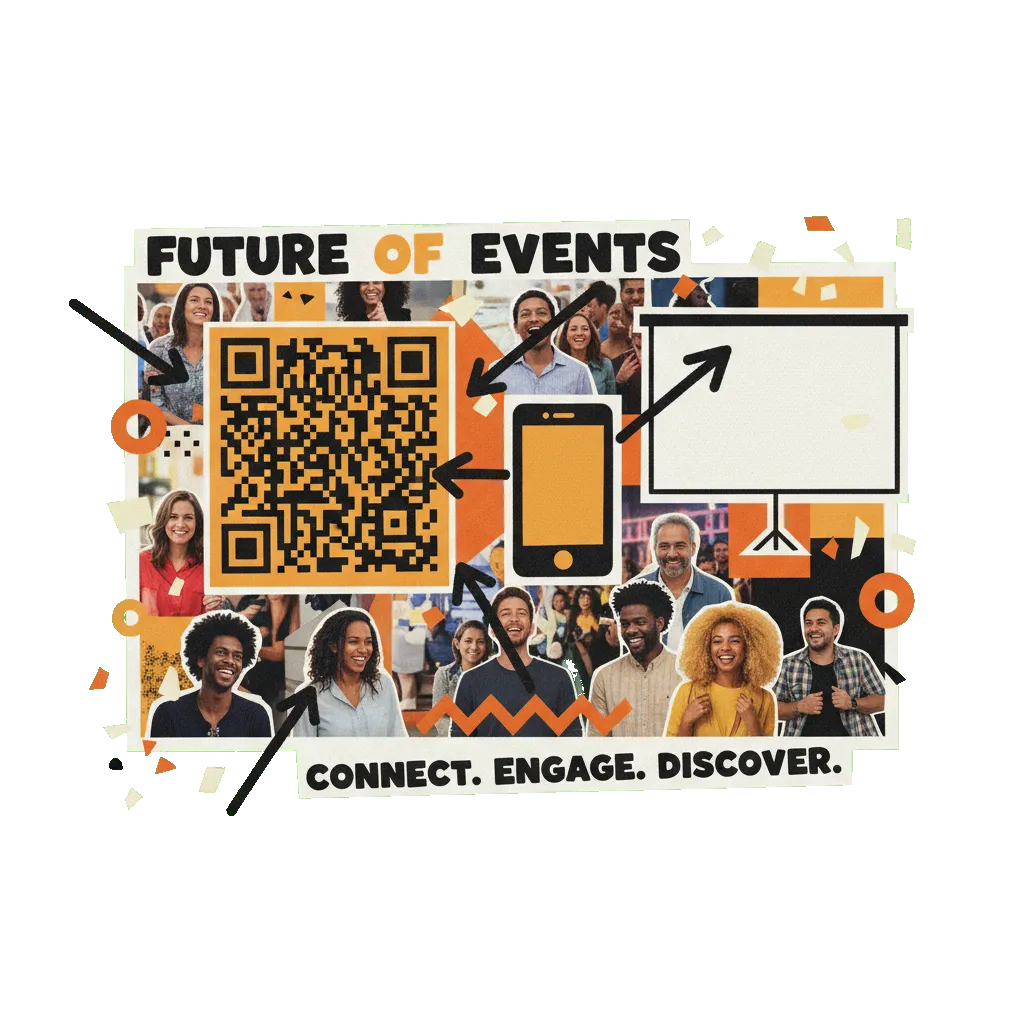
A live wedding slideshow is a slideshow that builds itself during the reception. Instead of a montage edited weeks before, it plays what guests post that night: they scan the QR code on the screen with their phone camera, add a photo or a message in the browser that opens, and it appears on the wall in about a second. Nobody installs an app or makes an account. On a paid plan, or a wall unlocked for the night, the couple downloads every post afterwards.
What a live wedding slideshow is, and what it isn't
It isn't the photo montage. A montage of childhood photos is made before the day and plays once, usually at dinner. A live slideshow starts nearly empty and fills with what's happening in the room: the cocktail-hour selfies, the table shots, the dance floor. Plenty of couples run both — the montage at a fixed moment, the live wall the rest of the night.
It isn't a shared album. A shared album collects photos quietly on phones; nobody in the room sees them go in. The live wall is on the screen everyone is facing, which is what makes guests post in the first place. (If you're deciding how to gather photos at all, how to collect guest photos at a wedding compares the options.)
It isn't one fixed look. QR Wall has three views, and a reception has at least three moods. Grid is a mosaic of many posts at once, in columns that drift slowly upward — good when people are standing and mingling. Slideshow is one row of posts scrolling sideways at Slow, Medium or Fast — readable from a seat. TV is full screen, one photo (or a pair of portrait photos) at a time — the one to watch from the dance floor. You switch between them from your phone in a tap, and the screen changes without reloading.
The run-of-show below is what this guide adds. For themes, prompts and décor, see live wedding photo wall ideas; for the screen hardware itself, how to display photos on a TV or projector; and for the whole wedding setup, QR Wall for weddings.
The run-of-show, from the week before to the morning after
Seven steps. The first three happen before guests arrive; the rest are a tap each on the phone remote.
-
1
The week before: create the wall and try all three views
Create a wall at qrwall.live and give it a title guests will recognise ("Ana & Luis — share your night"). Pick a theme: Default, Elegant, Memorial or Keynote. Open the display on a laptop, post a test photo from your phone, and switch between Grid, Slideshow and TV so you know what each looks like with your own photos. TV view needs a paid plan or a wall unlocked for the night; on the free plan it shows as locked.
-
2
At the venue: put the wall on the screen
On a smart TV, open the TV's browser, go to qrwall.live/tv and scan the pairing code with your phone; the TV switches to your wall and your phone lands on the remote. No account is signed in on the venue's TV. With a projector or an older TV, open the display link on a laptop connected by HDMI and go full screen. Then post one test photo from the back of the room.
-
3
Hand the phone remote to one person
The remote is a page on the host's phone that controls the screen across the room: play and pause, which view is showing, Slideshow speed, Grid columns, the TV style, whether the QR code sits in the corner, and a button that puts the QR code full screen for an everyone-scan-now moment. It also switches what guests can post: messages, reactions, video, camera-only. Give it to one person (a planner, a friend, the DJ) so nobody fights over it.
-
4
Cocktail hour: Grid
Grid fills the screen with posts in masonry columns. Once every column runs past the bottom of the screen, each column scrolls slowly upward (about one screen height every 25 seconds) and loops through the posts, so the wall keeps moving when nobody is posting. A new post lands in view, in the lower-middle of a column, with an amber glow until it scrolls off the top. With three or more columns, the QR code is pinned at the top of the last one. Use the spotlight button once, as guests arrive, to put the code full screen.
-
5
Dinner and speeches: Slideshow, paused for the toasts
Switch to Slideshow when people sit down: one row of posts scrolling sideways, easy to read from a table. Slow or Medium suits dinner. New posts slot in just past the right edge, so they come into view within moments. When the speeches start, tap pause so the screen isn't competing with the person holding the microphone, and tap play when the toasts end. If you prefer Grid for this part, a paused Grid still shows a new post at the top of a column, so a guest who posts during a speech still sees it.
-
6
Dancing: TV
When the dance floor opens, switch to TV: one photo full screen at a time, portrait photos side by side in pairs, now and then three photos as a collage. A photo or video posted now is the next thing on screen. In the Clean and Vintage TV styles, messages run in a ticker along the bottom. Pick a style: Clean; Vintage TV (an old tube television); TV Wall (a stack of old TV sets, where a new post takes over every screen at once); Hype (fast 1.5-second cuts with colour flashes); or Cinema (a letterboxed film look, slower, with messages as title cards, which suits the first dance).
-
7
End of the night: one last scan, then the gallery
In the last hour, spotlight the QR code once more for the guests who haven't posted yet. The next day, on Premium, Professional or an unlocked wall, download every photo, video and message and send the gallery link to guests, including the ones who couldn't come.
What goes wrong on the night
- ✗Taking the QR code off the screen. The code on the wall is how guests join: they scan it off the screen they're already watching. Keep it in the corner all night. Table cards with the same code help the far tables, but add them; don't move the code there instead.
- ✗Finding out on the night that TV view is locked. On the free plan, TV view is locked. Unlock the wall or upgrade before the day, and try TV on a laptop first.
- ✗Running out of posts on the free plan. The free plan shows 5 posts on the screen at a time, and a wall owns its first 30 posts; anything after that reaches the wall blurred, behind a lock. A reception goes past 30 posts quickly. Unlocking the wall is a one-off $14.99, or Premium is $10.99 for the month.
- ✗Expecting posts to be checked before they go up. On Premium, every post goes straight to the screen. AI screening and an approval queue (hold every post until someone taps approve on the remote) are Professional only. If you want to vet what appears during the speeches, that's the plan you need.
- ✗Nobody owns the remote. If the view, the pause and the QR spotlight belong to "whoever has the laptop", the switch from dinner to dancing never happens. Name the person.
- ✗The screen goes to sleep mid-toast. TVs have their own sleep and eco timers. Turn them off before guests arrive; the TV and projector guide lists where they hide.
A sample run-of-show
An example evening with a 5:00 pm ceremony. Move the times to fit yours; the view changes are what matter.
Frequently asked questions
What is a live wedding slideshow?
A slideshow on the reception screen that plays guests' photos as they post them. Guests scan the QR code shown on the screen, post a photo or message from their phone's browser, and it appears on the screen in about a second. There is no app and no account. It runs alongside, not instead of, a montage made before the day.
Can we switch views during the reception without restarting?
Yes. The host switches between Grid, Slideshow and TV from the wall's toolbar or from the phone remote, and the screen changes in place. The choice is saved on the wall, so if the screen reloads it comes back in the same view.
Can we pause the slideshow during the speeches?
Yes. The pause button on the remote freezes the wall, and play starts it again. In Grid, a post that arrives while paused still appears at the top of a column, so the guest who posted it sees it.
Do guests need the venue Wi-Fi?
No. Guests post from their phone's browser over mobile data or Wi-Fi, whichever they have. The screen is the device that needs a steady connection, so test it at the venue before guests arrive.
Is the free plan enough for a 100-guest wedding?
Usually not. The free plan shows 5 posts on the screen at a time, includes the wall's first 30 posts, and doesn't include TV view or the download afterwards. Unlocking that one wall is a one-off $14.99 and gives the full wall, TV view, the gallery link and the download. Premium ($10.99/month) also adds guest video clips; Professional ($19.99/month) adds AI screening and an approval queue.
Can guests post videos to the wall?
On Premium and Professional, yes: short clips of up to 15 seconds, recorded without sound, so they play silently on the wall. In TV view a video plays full screen. The host can turn video off from the remote.
Can we approve photos before they appear, for example during the speeches?
Only on Professional ($19.99/month). It has AI screening and an approval queue on the phone remote, where you can hold every post until someone taps approve. Premium has no moderation: every post goes straight to the screen.
Should we still book a photographer?
Yes. The wall collects what guests capture on their phones from where they are: the table shots, the dance floor, the moments the photographer wasn't facing. The photographer's edit is still the one you frame.
Try all three views on your laptop tonight
Create a free wall, post a photo from your phone, and switch between Grid, Slideshow and TV before the day.
Create your free QR Wall →✓ No credit card required ✓ Setup in 60 seconds
Related resources
QR Wall for weddings
The live wall at the reception, and the gallery after
Photos on a TV or projector
Smart TV with no laptop, HDMI, or a casting stick
QR code event wall setup
The full setup, step by step
Live wedding photo wall ideas
Themes, prompts and ways to make it yours
How to collect guest photos at a wedding
Albums, apps, cameras and a live wall compared
Pricing
Free, a $14.99 one-off unlock, or a month of Premium