The End-of-Season Banquet Slideshow Parents Make for You
The quickest end-of-season banquet slideshow is the one the parents build: share one QR code in the team chat three weeks out, families post their best photos of the season to a wall, and on the night that wall plays on the projector while new photos from the room join it. Keep a short edited highlight video for the awards if someone wants to make one; let the wall carry the dinner. This guide gives the timeline, a message to send parents, a run of show and the rules for photos of kids.
Last updated: October 2026
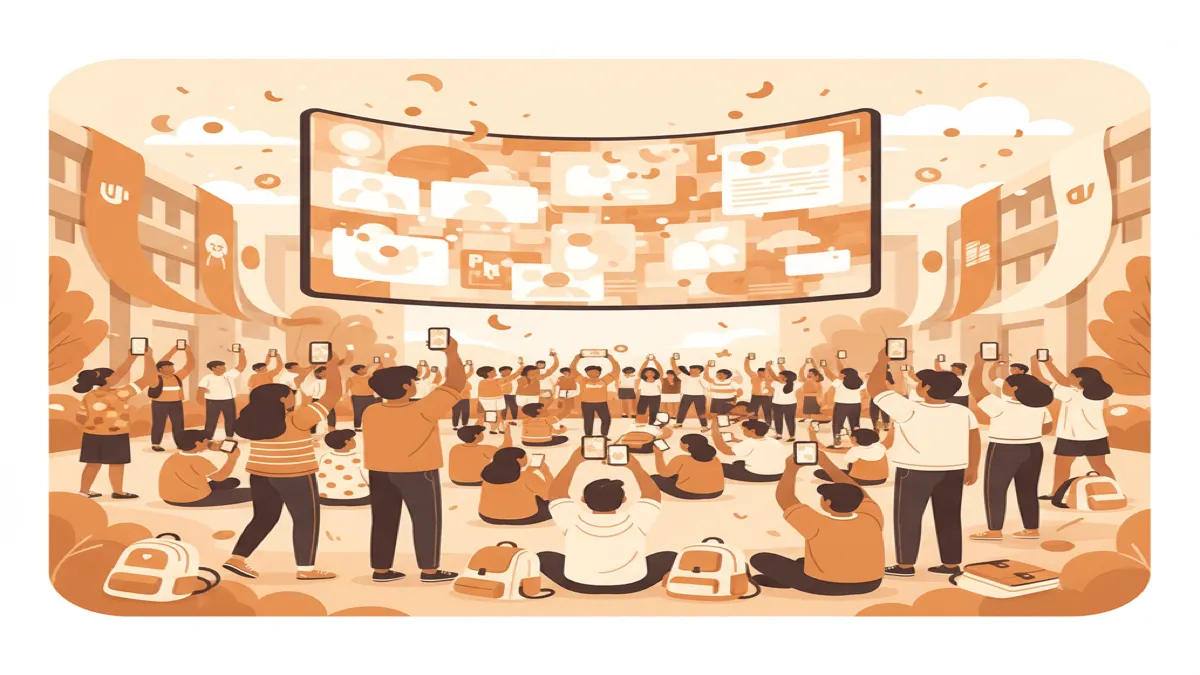
An end-of-season banquet slideshow is the photo show on the screen at a team's awards night. The usual version is a video one volunteer edits from photos parents send in. A live banquet wall is built by the families instead: they scan a QR code, post photos from their phone's browser (no app, no account), and each photo appears on the banquet screen in about a second. Photos posted in the weeks before are already there on the night, and the ones taken at the banquet join them.
Why the slideshow shouldn't be one parent's weekend
The edit is the bottleneck, not the photos. Every family already has the season on their phone. The work is getting it out of thirty camera rolls and a group chat, chasing the families who haven't sent anything, and editing it to music. That usually falls on one volunteer, the week of the banquet.
A wall moves the work to the people who have the photos. Each family posts their own, at a time that suits them, from the phone the photos are already on. Nobody downloads, renames or re-uploads anything, and there is no file to export the night before.
Every family looks for their own kid. That is what a banquet screen is for. On a wall, a family who sees their athlete missing can fix it from their seat: post a photo and it's on the screen a second later. In an edited video, a missing kid stays missing until next season.
The video still has a place. If someone enjoys editing, a 2–4 minute highlight video for the awards or the seniors' moment is worth making, and it can be cut from the photos on the wall. The wall carries the rest of the evening: arrivals, dinner, mingling, the team photo taken that night.
For game days and the club's screen the rest of the year, see QR Wall for sports events.
The message to send parents three weeks out
Send it in the team chat or the club email, with the QR code as an image and the link underneath for anyone reading on a laptop. Short works best:
Banquet photos: 3 per athlete by [date]
Scan this code (or open the link) and post your three favourite photos of [athlete] from this season: a game, practice, the bus, the sideline. No app and no sign-up; it takes a minute. Add their name and number in the message so we can find everyone.
They'll play on the big screen at the banquet on [date], and you can keep adding photos on the night.
Why three: it's a small enough ask that most families do it, and the arithmetic is easy to check. A roster of 20 at 3 photos each is 60 photos before anyone posts on the night; a roster of 40 is 120. Send one reminder a week before, and a second one only to the families whose athletes aren't on the wall yet.
From three weeks out to the morning after
Seven steps. The first four happen before the banquet; on the night it's a tap each on the phone remote.
-
1
Three weeks out: create the wall
Create a wall at qrwall.live and name it so families recognise it ("Eagles U12 — 2026 season"). The title shows on the wall, so it can carry the ask: "Post 3 photos of your athlete". Post a test photo from your own phone and open the display link on a laptop to see it land.
-
2
Three weeks out: send the parent message
Share the QR code and the link in the team chat with the message above: three photos per athlete, the athlete's name and number in the message, a deadline a few days before the banquet. Guests post from the phone's browser, from the camera roll or the camera.
-
3
One week out: check the roster
Open the wall and go down the roster. For every athlete who isn't on it yet, message that family directly; a coach or team manager often has a photo from a game. On Premium or Professional you can remove a duplicate or a blurry photo from the wall in one tap.
-
4
Venue check: the screen and the connection
Find out what the venue has: a TV with a browser, a projector with HDMI, or nothing (bring a laptop). On a smart TV, open qrwall.live/tv and pair it with your phone; on a projector, plug in a laptop and open the display full screen. Parents post over their own phone data, so the venue's Wi-Fi only matters for the screen itself.
-
5
On the night, arrival and dinner: Grid
Grid puts many photos on the screen at once in columns that scroll slowly and loop, which suits a room of families each looking for their own kid. Use the phone remote's spotlight button once as people sit down to put the QR code full screen, so everyone can add the night's photos.
-
6
Awards and seniors: Slideshow, or pause
Switch to Slideshow for the speeches: one row of photos moving sideways, readable from a table. Pause it while the coach is talking, or switch the screen to the edited highlight video if you made one, then come back to the wall. Before the end, take a team photo and post it so the last thing on the screen is everyone together.
-
7
After the banquet: one link for every family
On Premium, Professional or an unlocked wall, download every photo, video and message as one ZIP and send families the shareable gallery link. That link is the season's album: nobody has to ask who has the photos.
What goes wrong at banquets
- ✗Running out of room on the free plan. The free plan shows 5 photos on the screen at a time and keeps a wall's first 30 posts; anything after that reaches the wall blurred, behind a lock. A roster of 20 posting three photos each is 60 before the night starts. Premium ($10.99/month) shows and keeps every photo, or unlock just this wall with a one-off $14.99.
- ✗Asking for "all your photos". An open-ended ask gets the keen families' entire camera rolls and nothing from the rest. Ask for three per athlete, with a deadline.
- ✗No names in the posts. Without the athlete's name and number in the message, the roster check in step 3 is guesswork.
- ✗Taking the QR code off the screen. The code in the corner of the wall is how families add photos on the night. Keep it there; a printed code on the tables helps, but add it rather than moving the code off the screen.
- ✗Making the wall the only plan for the awards. The awards are a fixed moment with names read out. Have the edited video or the paused wall ready before the coach stands up, not a scramble for the remote.
- ✗Screen goes to sleep mid-speech. TVs and projectors have eco and sleep timers. Turn them off before families arrive; the TV and projector guide lists where they hide.
Live wall, edited video or shared album
Three ways to get a season of photos onto the banquet screen. Each is better at something.
Frequently asked questions
What's the easiest way to make an end-of-season banquet slideshow?
Let the families build it. Share one QR code in the team chat three weeks before, ask for three photos per athlete, and play the wall on the banquet screen; photos taken on the night join it a second after they're posted. If someone wants an edited highlight video for the awards, keep it to 2–4 minutes and cut it from the photos on the wall.
How long should a sports banquet slideshow be?
An edited video for the awards works best at 2–4 minutes; past that a room stops watching. A live wall has no length: it loops through every photo for as long as it's on, so it can run through arrivals and dinner while the edited piece is kept for one moment.
How do I collect photos from all the team parents?
Give them one place and one small ask: a QR code and link in the team chat, three photos per athlete with the athlete's name in the message, and a deadline. A week out, check the wall against the roster and message the families who haven't posted directly.
Can parents add photos during the banquet?
Yes. The QR code stays in the corner of the wall, and the phone remote can put it full screen for a moment. A photo posted from a seat is on the screen about a second later.
Is it safe to show photos of minors on the screen?
Use Professional ($19.99/month) for a youth team. AI moderation screens every photo and message, and the approval queue holds each post until a volunteer taps approve on their phone, so nothing reaches the screen unchecked. Professional also has a guest consent step. On Premium ($10.99/month) posts go straight to the screen and you can remove any post in one tap; the free plan has neither. Share the wall link with team families rather than posting it publicly.
Do we need Wi-Fi at the banquet venue?
Not for the families: they post over their own phone data. The screen needs a connection that can load a web page, which can be the venue's Wi-Fi or a phone hotspot. Test it at the venue before people arrive.
Is the free plan enough for a team banquet?
For a small team, sometimes. The free plan shows 5 photos on the screen at a time and keeps the wall's first 30 posts, with no download afterwards. Most rosters pass 30 photos before the night. Premium ($10.99/month, cancel after the banquet) shows and keeps every photo and adds the download and gallery link; Professional ($19.99/month) adds moderation and the approval queue for photos of kids.
Start the season's wall tonight
Create a free wall, post one photo from your phone, and share the code in the team chat.
Create your free QR Wall →✓ No credit card required ✓ Setup in 60 seconds
Related resources
QR Wall for sports events
Game days, finals and team banquets
Campus and school events
Graduations, formals and club nights
Photo wall privacy and safety
Moderation, approval and who can see the wall
Photos on a TV or projector
Smart TV with no laptop, HDMI, or a casting stick
Get guests to scan the QR code
Where to put the code and what to say
Pricing
Free, Premium $10.99/month, Professional $19.99/month