How to Get Guests to Actually Scan Your QR Photo Wall
The moves that get guests scanning a QR photo wall compound: the code on the live screen where every post lands in about a second, a card on every table that says "no app, no sign-up", the MC saying it twice before the room's big moment, and a short link for anyone whose camera won't read the code. The screen matters most, because seeing their own photo appear is what makes the next guest scan, and everything else points people back to it.
Last updated: September 2026
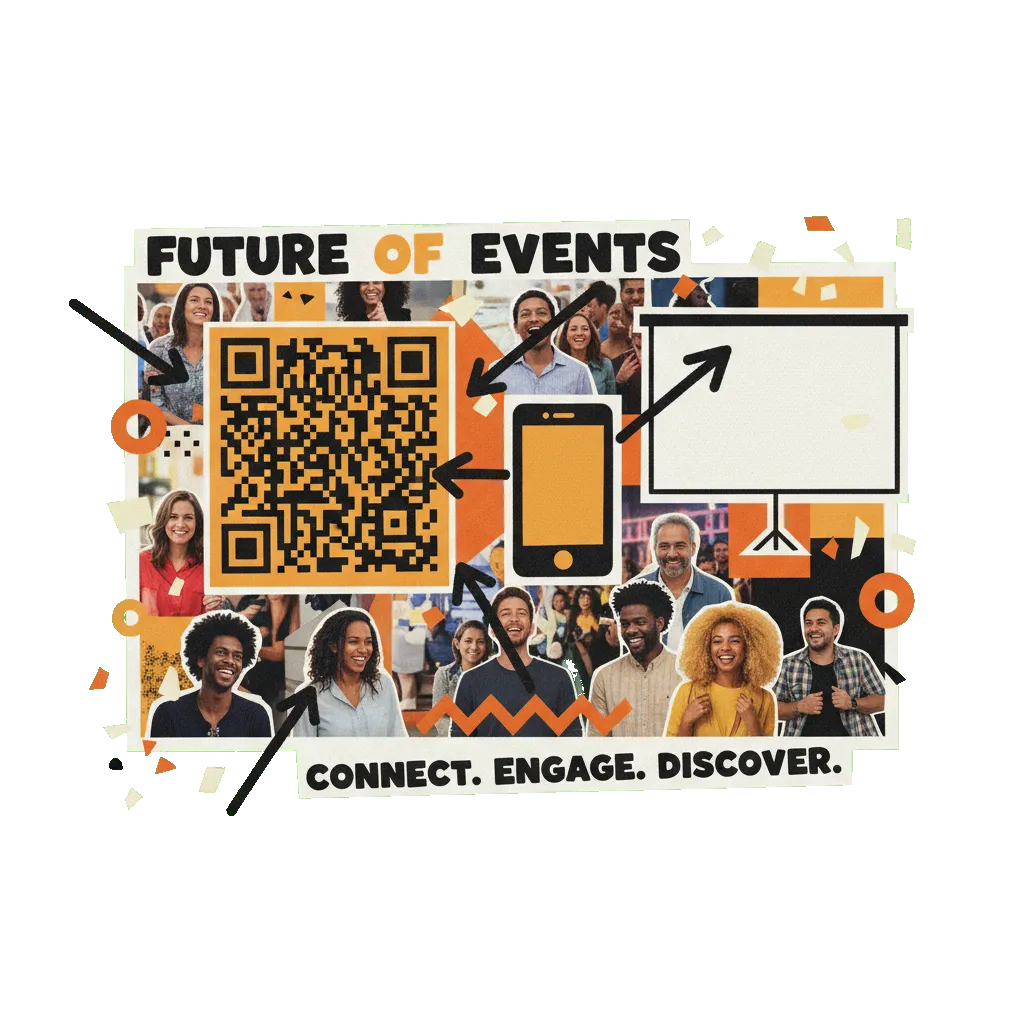
Getting guests to scan a QR photo wall is a placement, wording and timing problem, not a technology one. Across 106 real events, 63% of guests who opened the posting page went on to post (QR Wall's participation data from 106 events, 2026), so almost all the loss happens before the scan — and that is the part a host controls.
Why most QR photo walls get ignored
Most thin walls fail before anyone scans. The usual pattern: one sign at the entrance, read by guests carrying a coat and a gift; a vague line like "share your memories" that doesn't say how or promise there's no app; nobody mentions it out loud; and the screen sits empty at the start, so there's nothing on it to copy. None of that is about the software.
Once a guest has the page open, they post — and come back. In QR Wall's participation data from 106 events, 63% of the people who opened a wall's posting page posted at least once, and each posting guest sent a median of 3.4 posts. The median event had 18 different guests post. So the job is the first scan; the wall takes care of the rest.
Timing is half of it. On the median event, 48% of all posts arrived in the single busiest hour. The QR code has to be on the screen and mentioned from the front before that hour — the speeches, the first dance, the headliner — not after it.
The scan itself is easy. Guests point the built-in camera at the code and post from the phone's browser: no app, no account. Two-thirds of posting guests in the same data were on iPhone, the rest on Android, and neither needs a scanner app. For the longer argument, see the no-app photo wall.
The five moves that compound
Each move sends guests to the screen, and the screen sends the next guest to scan. Do all five and they feed each other; do one and you get the thin wall above.
- Keep the QR on the live screen all night. The code sits in the corner of the wall, where everyone is already looking and where their post lands in about a second. For the everyone-scan-now moment, tap the code on the wall, or press "Fill the wall with the QR" on the phone remote, and it fills the screen until you put it back.
- Put a card on every table. Strongly recommended: guests at a table are sitting down with phones out and time to spare. The card carries the same code and one line — "no app, no sign-up" — and points them back to the screen.
- Have the MC or DJ say it twice. Once when the room is seated, before the big moment; once when the dance floor opens. Both times, they point at the screen.
- Print a short link under every code. A few cameras won't read a code in low light, and some guests would rather type. The link rescues them.
- Follow up the next day. Send guests the gallery link (on Premium and Professional) so everyone sees what the room posted — and the guests who didn't post see what they missed.
Make the live screen do the selling
Seeing your own photo land on the big screen is the best prompt there is. A guest posts, it appears in about a second, the people around them see it and ask how. No card can do that, which is why the QR code belongs on the wall itself and stays there. Table cards and signs are extra places the same code appears; they don't replace it, and they can't fix a screen nobody is watching.
So set the screen up to be watched. Put it where the room faces, not in a side corridor; make sure the code is readable from the back row; and seed it before doors open with two or three posts from the hosts, so the first guest sees something to copy rather than an empty wall. For picking and setting up the screen itself, see how to display photos on a TV or projector.
Use the spotlight at the peak. Right before the speeches or the first dance, fill the screen with the QR while the MC gives the line below. The whole room scans at once, and the wall fills while everyone is still looking at it.
Know what the free wall shows. A free QR Wall shows five posts on screen at a time, rotating; Premium and Professional keep every post on the wall and let you download them afterwards (pricing). If there's no screen at the event at all, a shared album is the honest fallback — see Google Photos vs a QR photo wall.
The placement map: screen first, then the tables
Start with the live screen, then add places where guests stand still with a free hand. In order of how much each one matters:
| Spot | Priority | What goes there | Why it works |
|---|---|---|---|
| The live screen | Essential — the main scan point | The QR in the corner all night; the full-screen QR at the peak moment | Guests watch posts land and scan the code right where they're looking |
| Every table | Strongly recommended | A tent card with the same code and "no app, no sign-up" | Seated guests have phones out and time; the card sends them back to the screen |
| The bar | Recommended | A small card or counter sign | Queue time is idle time, and the screen is usually in view |
| The entrance | Optional | A welcome sign that says there's a live wall tonight | Sets the expectation; hands are full on arrival, so it's never the only sign |
| Dessert or cake table | Optional | A small card | A second wave late in the evening, when the first photos are already on the wall |
Never take the code off the screen to make the wall look cleaner. The screen is where the scanning happens; everything else in this table is additive.
Wording that gets a scan in two seconds
A card needs three things: what to do, where it goes, and the reassurance. "Scan" plus "the big screen" plus "no app, no sign-up" — in that order, in type big enough to read from across the table. Guests hesitate over apps and accounts, not over the camera.
- "Scan to put your photo on the big screen. No app, no sign-up."
- Wedding: "Your photos and a note for Ana & Tom go straight to the screen. Scan with your camera — no app, no sign-up."
- Party: "Got a good one? Scan and it's on the TV in a second. No app, no sign-up."
- Add a line for words: "A photo or a message — both go on the wall." Nearly a third of posts on live walls (31%) are written messages, not photos.
Avoid "share your memories" on its own (it doesn't say how), anything that sounds like an app download, and a hashtag next to the code — it suggests guests have to post publicly on social media. For weddings specifically, see how to collect guest photos at a wedding and QR Wall for weddings.
Print specs that actually scan
Big enough, dark on light, with a clear margin and a link underneath. Most unscannable cards break one of these:
- Size. A common rule of thumb is a code about one-tenth as wide as the distance it's scanned from. Table cards are read at arm's length, so a code around 4–5 cm (2 in) is plenty; a sign read from 3 m needs one about 30 cm across.
- Contrast. Dark code on a light background. Don't invert it, and don't print it in gold foil or on clear acrylic without a white backing.
- Quiet zone. Leave a blank margin around the code at least four of its small squares wide on every side. Floral frames and borders that touch the code stop cameras from finding it.
- Paper. Matte, not glossy — gloss under venue lights throws glare across the code.
- Short link. Print the wall's link under the code. In the QR Wall dashboard, "Print poster" opens a print-ready poster with the code, a "no app needed" line and the link underneath; "QR image" downloads a high-resolution PNG for your own card design.
- Test one before printing fifty. Scan a printed card from arm's length with an iPhone and an Android phone, in light close to the venue's.
What to tell the DJ or MC (say it twice)
Two mentions, timed before the peak, while pointing at the screen. The first when the room is seated and before the big moment — the speeches, the first dance — because that's the hour most posts arrive. The second when the dance floor opens or the cake comes out. More than two starts to sound like an ad, and people stop hearing it.
Send the MC these lines in advance:
- First mention: "Everyone — see the code in the corner of the screen? Point your phone camera at it and your photos go straight up there. No app, nothing to sign up for. There's one on your table too."
- Second mention: "The wall's filling up. If your photo isn't on it yet, scan the code on the screen or the card on your table."
- Optional prompt: "Next: your best photo with the couple. Go." A specific prompt gets more posts than a general invitation.
Whoever holds the phone remote fills the screen with the QR as the MC starts the first line, and puts it back once the posts start landing.
Corporate and party variants
The same rules work at a company event — the screen first, then the places people already look. Swap table cards and a DJ for:
- Badge backs. Print the code on the back of name badges, so every attendee carries it all day.
- The agenda slide. Put the wall's QR on the opening and break slides, and switch the main screen to the live wall during breaks.
- Slack or Teams. Post the wall's link in the event channel, for remote staff and anyone who missed the scan.
- A question on screen. Corporate walls lean on words — 39% of posts on corporate walls in the participation data were written — so put up a prompt the room can answer in a line, like "one thing you're taking back to your team".
- House parties. The TV is the wall; one card by the drinks is enough.
For events where strangers post, Professional adds AI moderation and an approval queue. More on company events: QR Wall for corporate events.
The 10-minute pre-event checklist
Do this the day before, on the real screen, with the real cards. It takes about ten minutes and catches most of what goes wrong on the night.
-
1
Open the wall on the actual screen
Load the display link on the TV or projector you'll use and go full screen. Walk to the back of the room and check you can read the QR code in the corner from there.
-
2
Scan and post from two phones
Scan the code on the screen with an iPhone and an Android phone and post a test photo from each. Each should appear on the wall in about a second.
-
3
Seed the wall
Post two or three real welcome posts — a photo of the hosts, a line of welcome — so the first guest to arrive sees something on the screen to copy.
-
4
Check one printed card
Scan a printed table card from arm's length in light close to the venue's, and type the short link underneath to make sure it opens.
-
5
Send the MC the script
Two lines, two moments: the first when everyone is seated and before the big moment, the second when the dance floor opens.
-
6
Set up the phone remote
Open the wall's remote on the phone of whoever will stand near the MC, so they can fill the screen with the QR on cue.
-
7
Check the signal
Try posting over the venue's guest Wi-Fi and over mobile data. If mobile signal is weak inside, add the Wi-Fi name and password to the table cards.
What not to do
- ✗One sign at the entrance and nothing else. Guests arrive with their hands full and walk past it. The code has to be on the screen, and on the tables.
- ✗Taking the QR off the screen to tidy up the wall. The screen is where people scan; a wall without its code stops recruiting.
- ✗Announcing it five times. Twice, timed before the peak, is heard. Five times is background noise.
- ✗A card that doesn't say "no app". The hesitation is about downloads and accounts. Say there are none.
- ✗Opening the doors to an empty wall. Seed it with a few posts so the first guest has something to follow.
- ✗Mentioning it after the big moment. Nearly half the posts land in one hour; announce the wall before it, not after.
- ✗Glossy, metallic or framed codes. Glare, low contrast and borders touching the code are the usual reasons a printed card won't scan.
Frequently asked questions
Do I need a QR card on every table?
It's strongly recommended. Seated guests have their phones out and time to spare, and a card on the table reaches the people who aren't facing the screen. The card works alongside the QR on the live screen, not instead of it: the screen is where guests see posts land, and that is what makes them want to scan.
How many times should the DJ or MC mention the photo wall?
Twice. Once when the room is seated and before the big moment — the speeches or the first dance — and once when the dance floor opens. Point at the screen both times. In QR Wall's participation data from 106 events, 48% of posts on the median event arrived in the single busiest hour, so the first mention has to come before that hour.
What if older guests don't know how to scan a QR code?
Most phones read a QR code from the built-in camera app, with no scanner app to install, and the page that opens needs no account. For guests who still hesitate, print a short link under the code so it can be typed, have the MC say "point your camera at the screen", and let a younger guest at each table show the first one. A written message counts too, for guests who'd rather not share a photo.
Does the photo wall work if guests are on cellular data?
Yes. Guests post from their phone's browser over mobile data or the venue's Wi-Fi, whichever they're on. The screen showing the wall needs its own connection. If mobile signal is weak inside the venue, put the guest Wi-Fi name and password on the table cards, and test posting over both before the event.
Can I use the same tips for a corporate event?
Yes. Keep the QR on the main screen, then swap the wedding placements for badge backs, the opening and break slides, and a link posted in the event's Slack or Teams channel. Put a question on the screen that people can answer in a line: corporate walls are text-heavy, with 39% of their posts written in QR Wall's participation data.
How many guests will actually post?
On QR Wall, the median real event had 18 different guests post, each sending a median of 3.4 posts, across 106 events between March and September 2026. Of the guests who opened the posting page, 63% posted. We can't see how many people were in the room, so these aren't a share of all attendees — but they show the drop-off comes before the scan, which is what placement, cards and the MC fix.
Put the code where everyone's already looking
Create a free wall, open it on the screen, and the QR is already on it. No app and no sign-up for guests.
Create your free QR Wall →✓ No credit card required ✓ Setup in 60 seconds
Related resources
QR code event wall setup
Create the wall and get it on the screen, step by step
Display photos on a TV or projector
Smart TV, laptop and HDMI, or a casting stick
How guests use a live event wall
Data from 106 events: who posts, when, and how much
How to collect guest photos at a wedding
Every way to get the photos off guests' phones