School Event Photo Sharing: Concerts, Plays and Assemblies, Safely
The safest way to share photos from a school concert or play is to send them to one wall the school approves, not to a parents' group chat. Parents scan a QR code, post from their phone's browser, and nothing reaches the screen or the shared gallery until a member of staff has checked it. No names in captions, no photos of children whose families have opted out, and one link for families afterwards instead of a hundred forwarded videos. This guide gives the safeguarding checklist, a message for parents, the settings, and a run of show.
Last updated: November 2026
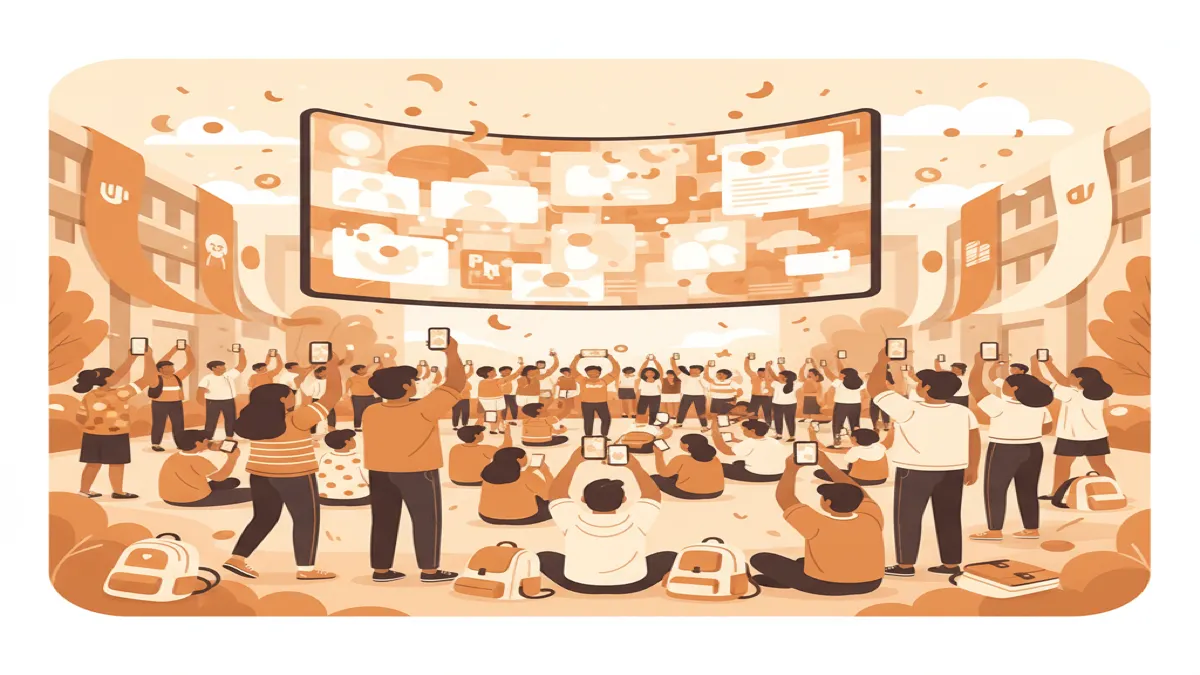
School event photo sharing is how photos taken by parents and staff at a school concert, play, assembly or sports day are collected and shared. In most schools it happens in parents' group chats, where photos of other people's children are forwarded with no one checking them. An approved school photo wall replaces that with one place: parents scan a QR code and post, a member of staff approves each photo before anyone else sees it, and families get one gallery link afterwards.
Why the group chat is the problem, not the photos
Parents will take photos either way. At a winter concert, most of the audience is holding a phone. The question for a school is not whether photos exist but where they go next. In a group chat they go everywhere: forwarded, saved, posted, with children's names in the replies and no way to take one back.
An approved wall gives the school a checkpoint. Every photo arrives in one queue. A member of staff checks it — is there a child whose family has opted out, a name, a uniform badge with the school's full name, anything unkind — and only then does it reach the hall screen or the gallery. A photo that shouldn't be shared is declined, and it never went anywhere.
Families get what they wanted in the first place. What parents actually want from the group chat is the photos of the bit their child was in, from a better angle than theirs. One gallery link after the event gives them that without anyone forwarding anything.
Your policy comes first. Schools already have a photography and consent policy, and in many countries a legal framework behind it. This guide is not legal advice; it describes a way of working that fits inside most school policies, and the checklist below is a starting point to adapt, not a replacement for yours.
For classroom use the rest of the year, see QR Wall for classrooms and for schools and universities.
The safeguarding checklist
Agree these with the head or the safeguarding lead before the event, and put them in the message to parents.
- Check the opt-out list first. Before the event, the member of staff approving photos gets the list of pupils whose families have not consented to photos. Any photo with those pupils in it is declined.
- No names. No children's full names in captions or messages, and no close-ups of name labels or badges. First names only if your policy allows it.
- Approval before anything is seen. Every photo is held until a member of staff taps approve. On QR Wall that is the approval queue on Professional; AI moderation screens each post first.
- Camera-only, if your policy prefers it. Camera-only mode means parents can post only photos taken there and then, not old photos from their camera roll.
- A consent step for parents. Before posting, parents confirm they are happy for their photo to be shown on the screen. Sharing on social media is a separate, optional tick.
- Families only. Share the link in the school's own channel to families, not on a public page or social account.
- Performers first. Ask parents not to stand or hold phones up during the performance; photos at the bows and afterwards are kinder to the children on stage and to the row behind.
- A set end date. Decide how long the gallery stays up — the end of term is common — and download it for the school's archive.
The message to send parents
Send it with the concert reminder, with the QR code as an image and the link underneath:
Photos from the winter concert
Please don't share photos of other children in group chats or on social media. Instead, scan this code at the bows or afterwards and post your photos to the school's concert wall. A member of staff checks every photo before anyone else sees it, and we'll send every family one link to the whole gallery after the concert.
Please don't add children's names. If you'd prefer your child not to appear in shared photos, let the office know by [date].
From the week before to the end of term
Six steps. One member of staff (or a trusted parent volunteer working with one) approves photos on their phone during the event.
-
1
The week before: agree the rules
Agree the checklist above with the head or safeguarding lead, get the opt-out list from the office, and decide who approves photos on the night. One approver per 100–150 audience members is a workable rule of thumb; a second approver helps at a big concert.
-
2
Create the wall
Create a wall at qrwall.live with a clear title ("Winter Concert 2026"). On Professional, turn on the approval queue, camera-only mode if your policy wants it, and the consent step. Post a test photo from your own phone and approve it, so you know where the queue is.
-
3
Send the parent message
Send the message above with the concert reminder: where to post, no names, the opt-out deadline, and the promise of one gallery link afterwards.
-
4
On the night: the screen, after the performance
If the hall has a screen, open the wall's display link on it after the performance — during the interval or as families leave — rather than during it. Parents scan the QR code on the screen; nobody needs an app or an account. Without a screen, share the link in the programme or on a sign by the doors.
-
5
Approve as photos arrive
The approver checks each photo against the opt-out list and the no-names rule and taps approve or decline. Approved photos appear on the screen about a second later; declined ones are never shown to anyone.
-
6
Afterwards: one link for every family
Send families the gallery link in the school's own channel, and download every photo as one ZIP for the school's archive. Take the gallery down on the date you agreed.
What goes wrong
- ✗Putting the wall on the screen during the performance. The children on stage are the show. Use the screen before, at the interval and afterwards.
- ✗No opt-out list in the approver's hand. Approval only protects children if the person approving knows whose photos must not be shared. Get the list from the office the day before.
- ✗Names in captions. Parents add them out of pride. Say "no names" in the message and decline any post that includes one.
- ✗Choosing a plan without approval. The free plan and Premium ($10.99/month) post straight to the screen; Premium lets you remove a post in one tap, but only after it has been shown. For photos of pupils, use Professional ($19.99/month), where nothing is shown until it is approved.
- ✗Running out of room on the free plan. The free plan shows 5 posts at a time and keeps a wall's first 30, with no download afterwards. A school concert passes 30 photos quickly.
- ✗Posting the link publicly. Keep it in the school's channels to families. A public link is a public wall.
Approved wall, group chat, shared album or official photographer
Four ways a school concert's photos usually get shared. Each has a place.
Frequently asked questions
What is the safest way to share school concert photos with parents?
Send them to one place the school controls instead of a parents' group chat. Parents scan a QR code and post their photos; a member of staff approves each one against the opt-out list and a no-names rule before anyone else sees it; families get one gallery link afterwards. Share the link only in the school's own channels to families.
Can parents take photos at a school concert?
That depends on the school's own photography policy, and many allow it for personal use. The common problem is not the taking but the sharing: photos of other people's children posted to group chats or social media. Ask parents to share through the school's approved wall instead, and to keep phones down during the performance itself.
How do we keep out photos of children whose families have opted out?
Give the person approving photos the opt-out list before the event, and use a tool where nothing is shown until it is approved. On QR Wall the approval queue (Professional) holds every photo until a member of staff taps approve, so a photo with an opted-out child in it is declined and never seen.
Do parents need to download an app?
No. Parents point their phone camera at the QR code and the posting page opens in the browser. There is no app and no account to create.
Is there a school discount?
Yes. Schools, universities and registered nonprofits get their first month of Professional for $6.99, applied automatically when you sign in with a school email address; after that Professional is $19.99/month and you can cancel at any time. Unlock this wall ($14.99 once) lifts the free plan's limits on one wall but does not add approval or moderation.
Should we show the photos on the hall screen?
Before the performance, at the interval and as families leave — not during it. Seeing their photo appear on the big screen is what gets most parents to post through the wall instead of the group chat, and nothing reaches it without approval.
Set up the concert wall before the reminder goes out
Create a free wall, post a test photo from your phone, and see where approval fits before choosing a plan.
Create your free QR Wall →✓ No credit card required ✓ Setup in 60 seconds
Related resources
QR Wall for schools and universities
Assemblies, open days, graduations
QR Wall for classrooms
Student work on the screen, no student accounts
Photo wall privacy and safety
Moderation, approval and who can see the wall
Moderation demo
The approval queue and AI screening, played through
End-of-season banquet slideshow
Team families build the slideshow together
Pricing
Free, Premium $10.99/month, Professional $19.99/month