A School Dance Photo Wall Students Will Actually Watch
The way to make a school dance's photos both fun and safe is a QR wall where every photo waits for a staff member's approval and only approved ones reach the gym screen. Students scan the code, post from their phone's browser, and see themselves on the big screen a few seconds later; families get the gallery link afterwards through the school's own channels. One adult owns the approval queue on their phone, a student volunteer helps, and the school's photo policy sets the rules. Below: the committee setup, a screen rulebook, where to put the QR codes, pre-dance photos from parents, and what happens to the photos after.
Last updated: November 2026
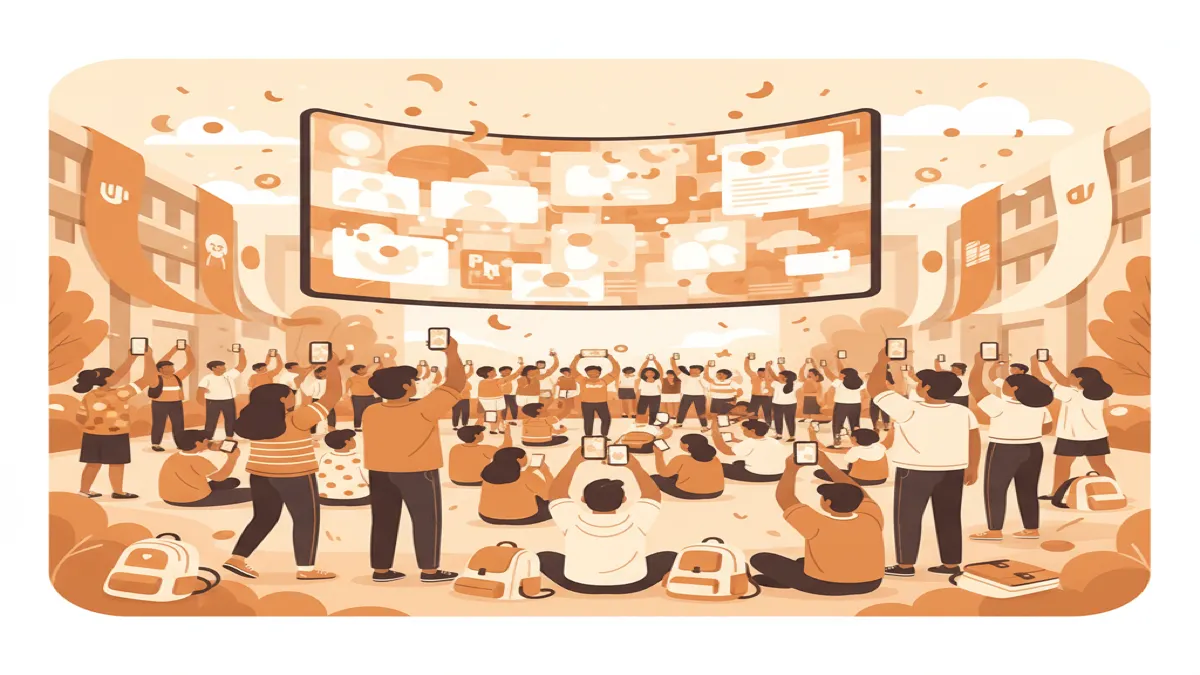
A school dance photo wall is a live screen at a prom, winter formal, homecoming dance or leavers' ball that shows photos students and families post by scanning a QR code with their phone. No app and no account. With an approval queue, nothing appears until a member of staff taps approve, so the screen only ever shows photos an adult has checked. Afterwards the school can share one gallery link and download every photo for the yearbook.
Why a dance needs a screen and an approver
The students have the best photos and no reason to send them anywhere. They're on two hundred phones, and the only ones that travel go to group chats and social apps the school never sees. Parents at home want to see them; the yearbook team wants them in January; nobody has them in one place.
The live screen is the reason to post. A shared album asks students to upload for later. A screen in the gym shows their photo, with their friends, a few seconds after they post it, while they're still dancing. That's what gets a teenager to send a photo to the school rather than only to their friends.
Approval makes the screen safe to put up. At a school event, nothing should reach a projector because a student posted it. With the approval queue, one adult sees every photo first and taps approve or decline on their phone. AI moderation screens photos and text before they reach the queue, which catches the obvious ones; a person decides the rest.
Your school's policy comes first. Schools have photography and media-consent rules, and often a legal framework behind them. This guide isn't legal advice and QR Wall doesn't certify compliance with any of it; it describes a setup that fits inside most school policies. For concerts, plays and assemblies, the school event photo sharing guide has the full safeguarding checklist.
11 school dance photo ideas
Pick what fits your budget and the room. The backdrop and the screen do most of the work; the rest add moments.
-
A themed photo backdrop
A balloon arch, sequin wall, fairy lights or a painted set that matches the dance theme. Put it in good light, with space for a group of eight.
-
A live wall on the gym screen
A QR code on the screen and on signs around the room. Students post photos from their phones; a member of staff approves each one and it appears on the screen seconds later.
-
A hired photographer for portraits
Couples and friend-group portraits at the backdrop, posed and lit. The photographer's gallery usually arrives a week or two later.
-
A props table
Signs, sunglasses, crowns, a frame with the school year on it. Keep anything with the school's full name off the props if your policy prefers it.
-
Pre-dance photos from home
Parents post the porch, garden and dinner photos before students leave. The posting link works from anywhere, so they're on the screen when students arrive.
-
A grand-march or arrivals moment
Each group is announced as it walks in. A staff member or yearbook student photographs it from one spot.
-
A yearbook photographer on the floor
A yearbook or photography student with a camera, taking candids for the yearbook. Their best shots can go on the wall too.
-
The DJ's screen
Ask the DJ to show the QR code between sets, or put the wall itself on their screen for a song.
-
Friend-group photo time
A set ten minutes, called by the DJ, when every friend group goes to the backdrop. It spreads out the queue.
-
A last-song group photo
Everyone on the floor for one wide photo before the lights come up. Post it so it's the last thing on the screen.
-
A gallery for the yearbook
After the dance, download every approved photo for the yearbook and newsletter, and send families one gallery link.
Committee setup in 20 minutes
Do this at the planning meeting, with the staff member who will own the wall in the room.
- One adult owns the approval queue. A teacher, the activities coordinator or a PTA volunteer the school has cleared. They approve from their phone; it's a tap per photo. A student volunteer can sit with them and flag photos, but an adult taps approve.
- Plan: Professional. It's the plan with the approval queue, AI moderation (five strictness levels), the consent step and camera-only mode. Schools signed in with a school email get the first month for $6.99.
- Settings: approval queue on; AI moderation on at a strict level; the consent step on, if your policy wants a record that each poster agreed to be on the screen; video off if you'd rather not check clips; camera-only mode if you want photos taken on the night rather than the camera roll (turn it off for the pre-dance window, below).
- The screen. The gym projector or a TV, a laptop with the wall's display link open full screen, and someone who knows where the AV cables are. A smart TV can open qrwall.live/tv and pair with a phone instead.
- The rulebook. Agree it now (next section) and put it in the message to students.
- A test. Create the wall, post a photo from a phone, approve it, and watch it land on the screen.
The screen rulebook
Say it in the message to students, on a sign by the QR code, and in the approver's head. Short enough to remember:
What goes on the screen
Photos that are school-appropriate and that everyone in them would be happy to see on the big screen.
No photos of people who've asked not to be shown. No names, phone numbers or social handles in messages. No photos from outside the dance that you wouldn't show a teacher.
A teacher checks every photo before it goes up. If yours doesn't appear, that's why.
For the approver: decline anything unkind, anything that singles someone out, any photo with a student whose family has opted out (get the list from the office), and anything you'd hesitate to show the principal. When in doubt, decline: a declined photo is never shown to anyone.
Where to put the QR codes, and the pre-dance photos
The code on the screen is the main one. Students see a photo land and scan to post their own. Signs around the room catch the people who aren't facing the screen:
- The entrance, with the rulebook underneath.
- The photo backdrop, where every photo is taken anyway.
- The snack and drinks table, where people stand still.
- The DJ's slide between sets, if the DJ has a screen.
Print them dark on light and matte. A common print rule of thumb is a code about one-tenth as wide as the distance it's scanned from, so 10–15 cm (4–6 in) for a sign read from a metre or so, and bigger in a dark gym; the free QR poster maker makes them. More placement ideas are in getting guests to scan the QR code.
Pre-dance photos from parents. The posting link works from anywhere, so send it to families through the school's channel on the afternoon of the dance: the porch photo, the corsage, the dinner. They go through the same approval queue and are on the screen when students walk in. If you use camera-only mode, parents can still post a photo they take with the posting page open, but not one already in their camera roll; turn camera-only on when the doors open if you want both.
Consent and policy: your school's rules first
- Follow your media-consent list. The approval queue is how you apply it: the approver declines photos with students whose families have opted out.
- The consent step records the poster's agreement, not everyone's. On Professional, each poster ticks "I agree that my photo or message may be shown on the event screen." before their first post. It doesn't give consent for every other student in the photo; your school's forms do that.
- Keep the code and the links in school channels. The wall, its posting page and its gallery open for anyone who has their link, and anyone with the code can post. Don't put the QR code or the gallery link on a public social account or website.
- Students can still screenshot. Approval decides what reaches the screen and the gallery; it can't stop someone photographing the screen or saving a gallery photo. Say so plainly to families rather than promising otherwise.
- Decide when it's deleted. Photos on QR Wall don't expire on any plan. Deleting a post removes it and its file; deleting the wall removes every photo and message on it. Pick a date that matches your policy (the end of term is common) and delete it then, after the yearbook download. The privacy policy and security page have the details your data lead will ask for.
From the committee meeting to the yearbook
A plan for a dance two weeks out. The night itself needs one approver, one person on the screen, and a test before the doors open.
-
1
Two weeks out: set up the wall
Create the wall with the dance's name ("Winter Formal 2026"), switch on the settings above, agree the rulebook with the principal or safeguarding lead, and get the opt-out list from the office.
-
2
One week out: tell students and families
Put the rulebook and a line about the screen in the dance announcement: "Scan the code at the dance and your photos can go on the big screen, after a teacher checks them." Families get a note that the gallery link comes afterwards through the school.
-
3
Afternoon of the dance: the pre-dance link
Send families the posting link for porch and dinner photos. The approver clears them before the doors open, so the screen has photos on it from the start.
-
4
One hour before: screen and test
Open the wall's display link full screen on the gym projector or TV, turn off sleep timers, post a test from a phone and approve it. Check the venue's phone signal; students post over their own data, and the screen needs Wi-Fi or a hotspot.
-
5
Doors open: Slideshow, code on screen
Run Slideshow, which scrolls a row of photos sideways and is readable from the dance floor. Use the phone remote's spotlight button to put the QR code full screen for a minute after the first song, then back to the corner. The approver works the queue from their phone.
-
6
The busy hour: Grid
When photos are arriving fast, switch to Grid, which shows many photos at once in slowly scrolling columns, so more students find themselves. If the queue backs up, a second staff approver can help from their own phone.
-
7
After the dance: gallery, yearbook, deletion
Download every approved photo as one ZIP for the yearbook and newsletter, send families the gallery link through the school's channel, and delete the wall on the date you agreed.
What goes wrong at school dances
- ✗Choosing a plan without approval. The free plan and Premium ($10.99/month) post straight to the screen. Premium lets you remove a post in one tap, but only after it has been shown; the free plan can't remove posts. For a dance, use Professional ($19.99/month, or $6.99 the first month for schools), where nothing shows until it's approved.
- ✗The free plan's limits. The free plan shows 5 posts on screen at a time and keeps the wall's first 30, with no download for the yearbook. Unlock this wall ($14.99 once) lifts the caps on one wall but adds no approval or moderation, which is why it's the wrong fix for a school dance.
- ✗Nobody owns the queue. Approval only works if someone is approving. Name one adult, and a backup for when they're on the floor.
- ✗A student holding the approve button alone. A student volunteer is a great second pair of eyes; the tap should be an adult's.
- ✗The QR code or gallery link posted publicly. Anyone with the code can post, and anyone with the gallery link can look. Keep both in school channels.
- ✗Promising it's private. Say what's true: a teacher checks every photo, the links stay in school channels, and students can still screenshot.
- ✗No delete date. Photos don't expire on their own. Put the deletion date in the committee notes when you set the wall up.
Live wall, gallery link, shared album or photographer's gallery
Who sees a dance's photos, when, and who checks them first, in the four usual ways of sharing them.
Frequently asked questions
How do you share prom or school dance photos with everyone?
Give everyone one place to post and one link to see them. Students and parents scan a QR code and post from their phone's browser; a member of staff approves each photo; approved photos play on the gym screen during the dance; and afterwards the school sends families one gallery link through its own channels.
Can a school dance show photos on a screen safely?
Yes, if nothing reaches the screen without an adult checking it. Use a wall with an approval queue (Professional on QR Wall): every photo waits until a member of staff taps approve, AI moderation screens photos and text first, and the approver declines photos of students whose families have opted out.
Who should approve photos at a school dance?
One named adult, such as a teacher, the activities coordinator or a cleared PTA volunteer, with a backup. A student volunteer can help spot problems, but an adult should make the call. One approver per 100–150 students posting is a workable rule of thumb; add a second for a big prom.
Do students need an account or an app?
No. They point their phone camera at the QR code and the posting page opens in the browser. There's no app and no account. The wall and the posting page can be in English, Spanish or Bahasa Indonesia.
Can students screenshot the photos?
Yes. Approval decides what is shown on the screen and in the gallery, but nothing can stop someone photographing a screen or saving a photo they can see. Tell families that plainly, and keep the links in school channels.
What happens to the photos after the dance?
They stay until the school deletes them; photos don't expire on any plan. Download them for the yearbook and newsletter, send families the gallery link, then delete the wall on the date your policy sets. Deleting the wall removes every photo and message on it.
What does it cost for schools?
Schools and universities get their first month of Professional for $6.99, applied automatically when the account uses a school email, then $19.99/month; cancel after the dance if you don't need it again. Premium ($10.99/month) has no approval queue, so it isn't the plan for a school dance.
Set up the dance wall before the announcement goes out
Create a free wall, post and approve a test photo, and see it on the gym screen before choosing a plan.
Create your free QR Wall →✓ No credit card required ✓ Setup in 60 seconds
Related resources
QR Wall for schools
Professional for $6.99 the first month
Campus and student events
Formals, club nights and orientation
Graduation walls
Ceremonies and graduation parties
School event photo sharing
The safeguarding checklist for concerts and plays
Senior night slideshow
Families post the throwbacks; the gym screen plays them
Try the approval queue
The real moderation screens, with sample posts
Photo wall privacy and safety
Moderation, approval and who can see the wall